Menu QR Guide
How to make a menu QR code that survives menu changes.
Create a QR code for your menu, test it, download print-ready artwork, and use a dynamic destination if the menu link may change later.
Menu QR codeRestaurant menuTable tentsOrdering links
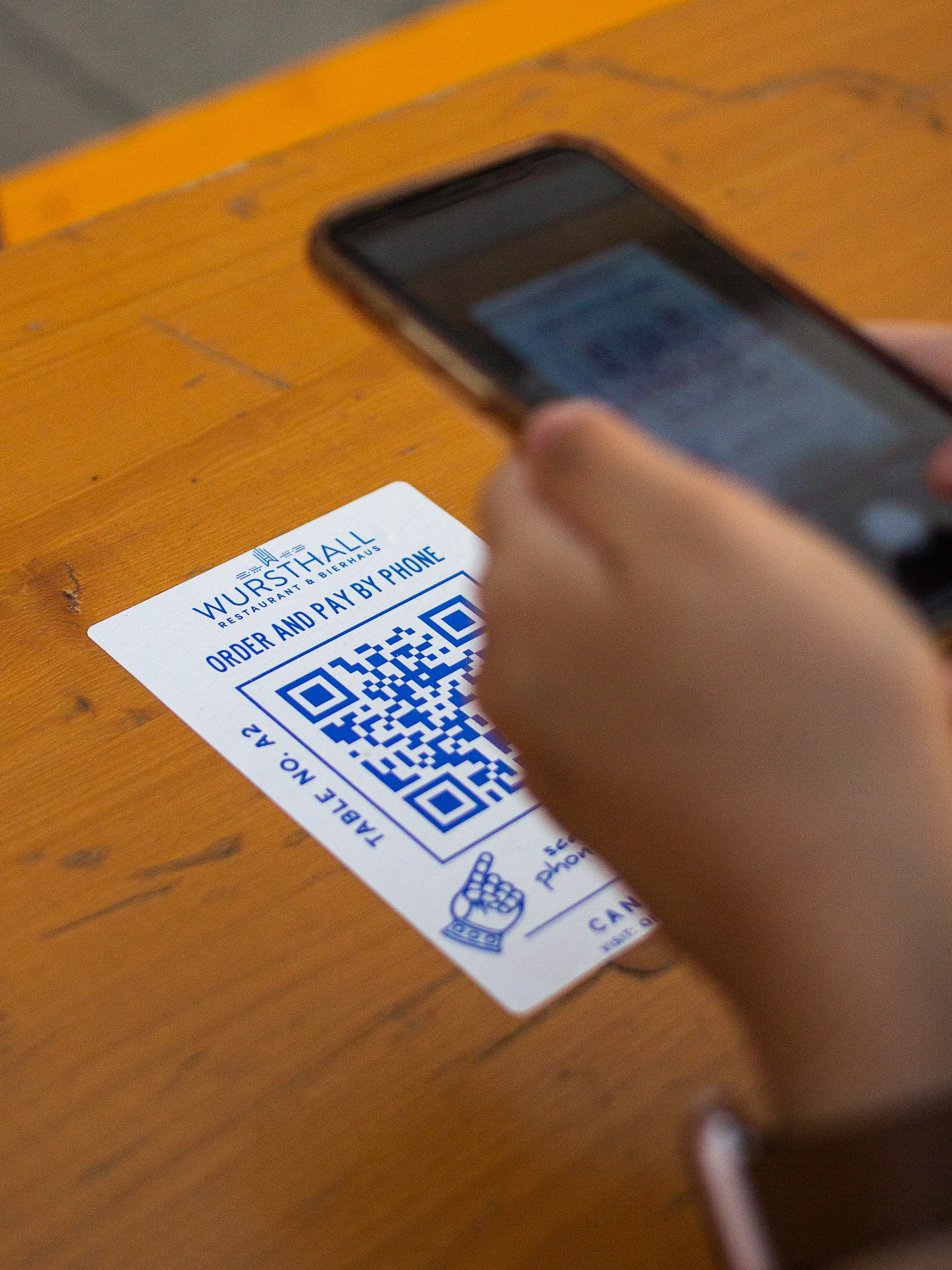
Menu QR Guide
Photo by Albert Hu on UnsplashPrint-ready setup
Menu QR Guide
Destination
/use-cases/restaurants
Export
PNG/SVG
Scans
Tracked
01 Copy the menu or ordering URL.
02 Create a dynamic QR code if the destination may change.
03 Style the code with high-contrast colors.
Practical Uses
What this QR code should actually do
Each printed code should map to a clear customer action, not a generic homepage.
01
Menu QR destinations
The QR code should point to the menu format guests can use immediately.
- Online menu
- PDF menu
- Ordering page
- Specials page
- Catering menu
02
Best placements
Put the code where guests naturally look before ordering.
- Tables
- Counters
- Windows
- Receipts
- Takeout bags
Examples
Printed placements to consider
Placement 1
Online menu
Placement 2
PDF menu
Placement 3
Ordering page
Placement 4
Specials page
Placement 5
Catering menu
Placement 6
Tables
Workflow
How to use SQRE for this
- 1 Copy the menu or ordering URL.
- 2 Create a dynamic QR code if the destination may change.
- 3 Style the code with high-contrast colors.
- 4 Download PNG or SVG and test a printed sample.
Avoid
Common QR code mistakes
- × Using a menu page that is hard to read on phones.
- × Changing the menu URL after printing a static code.
- × Printing table tents before testing scan distance and lighting.
FAQ
Menu QR Guide FAQ
Can a menu QR code link to a PDF?+
Yes, but a mobile-friendly menu or ordering page is usually better for guests than a large PDF.
What if my menu URL changes?+
Use a dynamic QR code so you can update the destination from SQRE instead of reprinting every table tent.
Ready to create the QR code?
Start free, create a clean QR code, and switch to dynamic when printed materials need editable destinations.